![rently .jpg]](https://help.rentlysoft.com/hs-fs/hubfs/rently%20.jpg?height=40&name=rently%20.jpg)
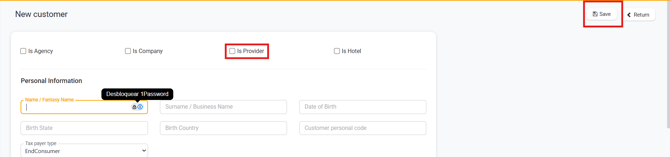
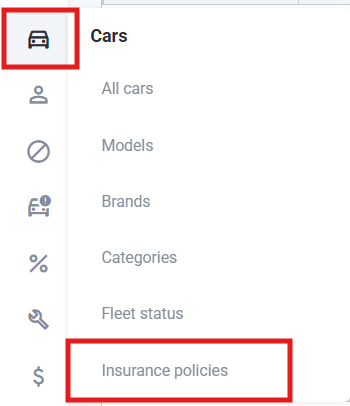
Go to Insurance Policies. Create the Policy with the insurer.

Complete the insurance policy details and click save.
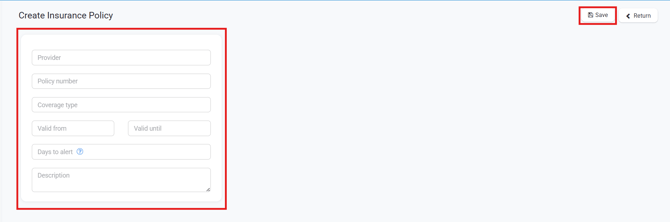
The Policy Number may be the same for several vehicles, and then within the policy it can be clarified whether each vehicle has a particular number.
Days to alert: fill in how many days before expiry you want to receive an alert.
Access the generated policy and assign the corresponding vehicles by clicking on ‘Add’.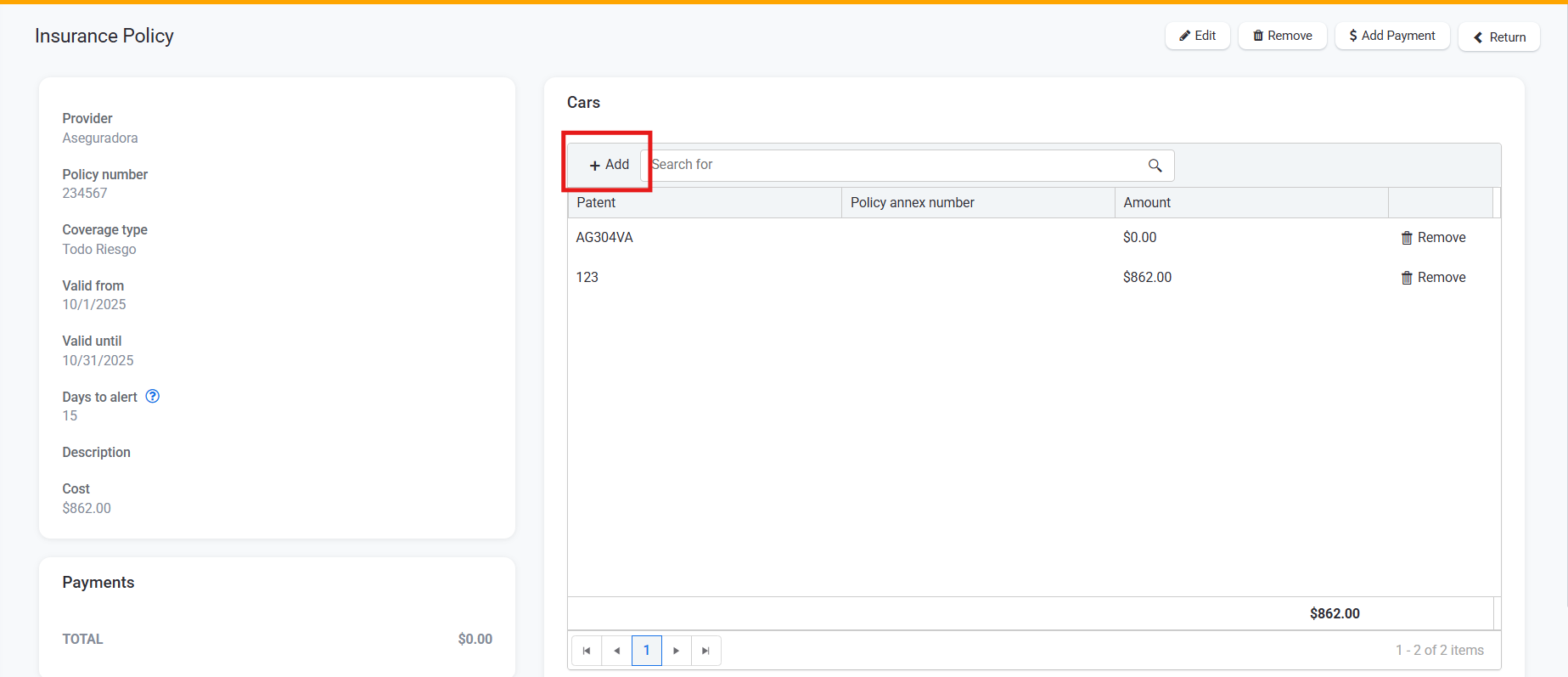
Select which car the policy corresponds to and clarify the specific number for that vehicle in the ‘Policy Annex Number’ field.
Click Add to associate all vehicles that correspond to the policy in question.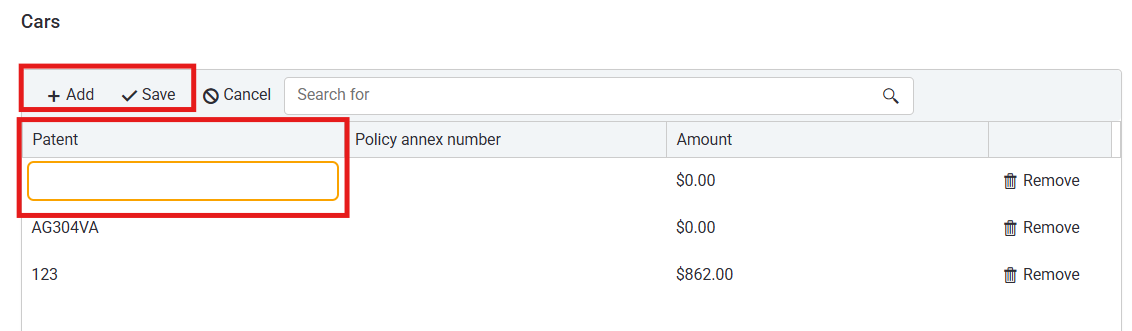
You must enter the first 4 characters of the licence plate to list the cars that begin with the same characters.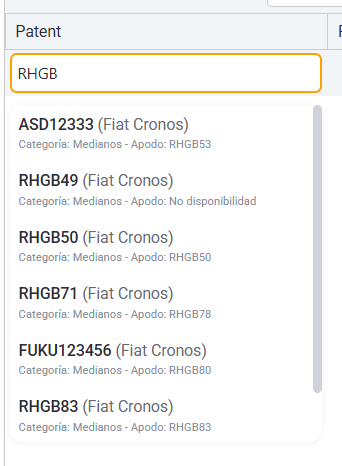
Select the vehicle and add as many as you wish.
When finished, it is important to click on ‘Save’ next to the ‘Add’ button so that the system successfully saves the information.
If you wish to remove a car from that policy, you must click on ‘Remove’ and then on “Save” next to ‘Add’.
If you are unable to add insurance policies, please contact an Administrator to enable the following permissions.
You can manage insurance policies
You can edit insurance policies