![rently .jpg]](https://help.rentlysoft.com/hs-fs/hubfs/rently%20.jpg?height=40&name=rently%20.jpg)
To customize your webpage header, first go to Pages on the sidebar, and then select Header.

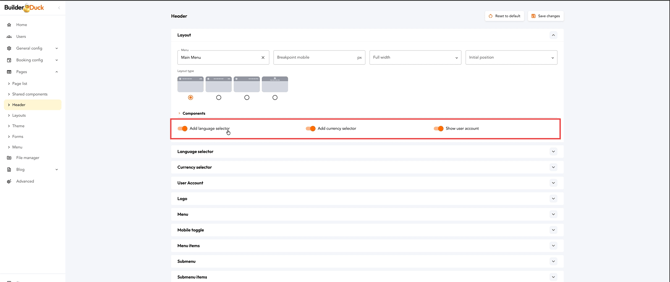
First of all, you must select which menu you want to display. To do it, press the Menu dropdown and select it.

In the next field, you can setup a breakpoint for mobile by entering the pixels number.
💡A common mobile breakpoint is 768 pixels or less, where content adjusts to fit a smaller display, often with features like:
-
Switching from multi-column to single-column layouts.
-
Enlarging buttons and text for touch interaction.
-
Hiding or collapsing menus to save space.
You can also choose whether to display the header in full-width or boxed layout. To do so, simply select your preference from the dropdown menu.

Then, select the layout type by clicking on the box below the graph.

If your webpage supports multiple currencies or languages, you can enable their display in the header by activating the respective switches.

If your website supports multiple currencies, languages, or user login, you can enable their display in the header by activating the corresponding toggles.
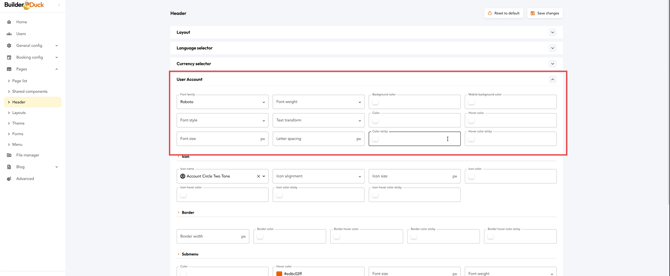
Below, you’ll find the settings for each option. For example, if you open User account, you can configure everything from the font to the background color and the icon used to display the user in the header.
Finally, press Save Changes. You will see the changes reflected on your webpage.
❗Open your webpage to view the changes.
If a tab is already open, close it and open it again. Refreshing the page won’t update the change.