![rently .jpg]](https://help.rentlysoft.com/hs-fs/hubfs/rently%20.jpg?height=40&name=rently%20.jpg)
To configure a customer delivery protocol, go to General Settings and select In & Out Settings. Then access Customer Delivery Protocol Settings.
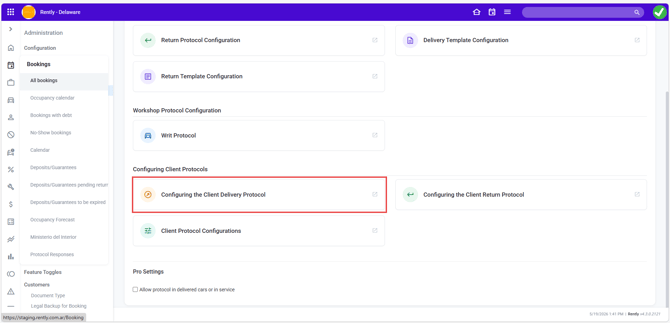
Go to Templates and select Vehicle Delivery (Customer).
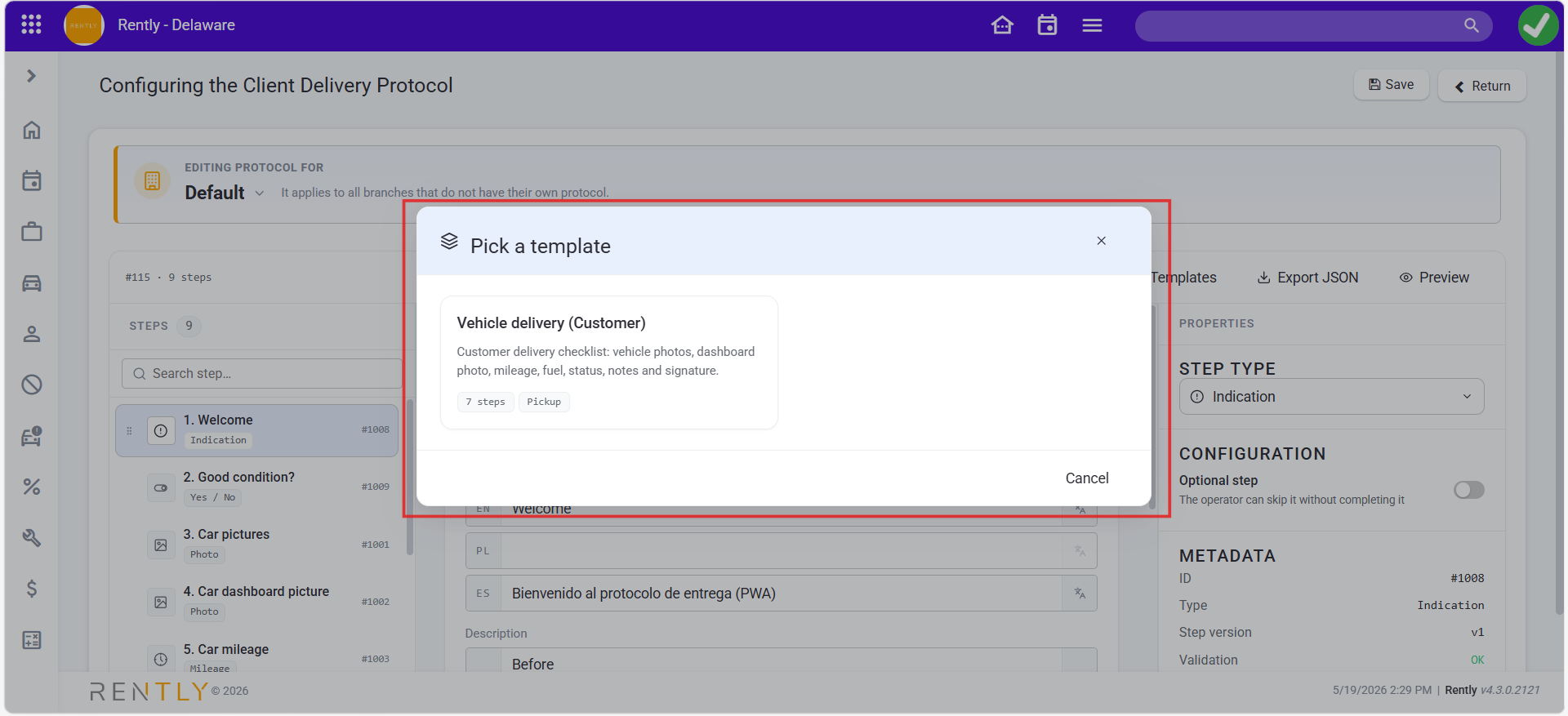
You will find a series of pre-configured steps. You can change the order of the steps by simply dragging and dropping them into the desired position.
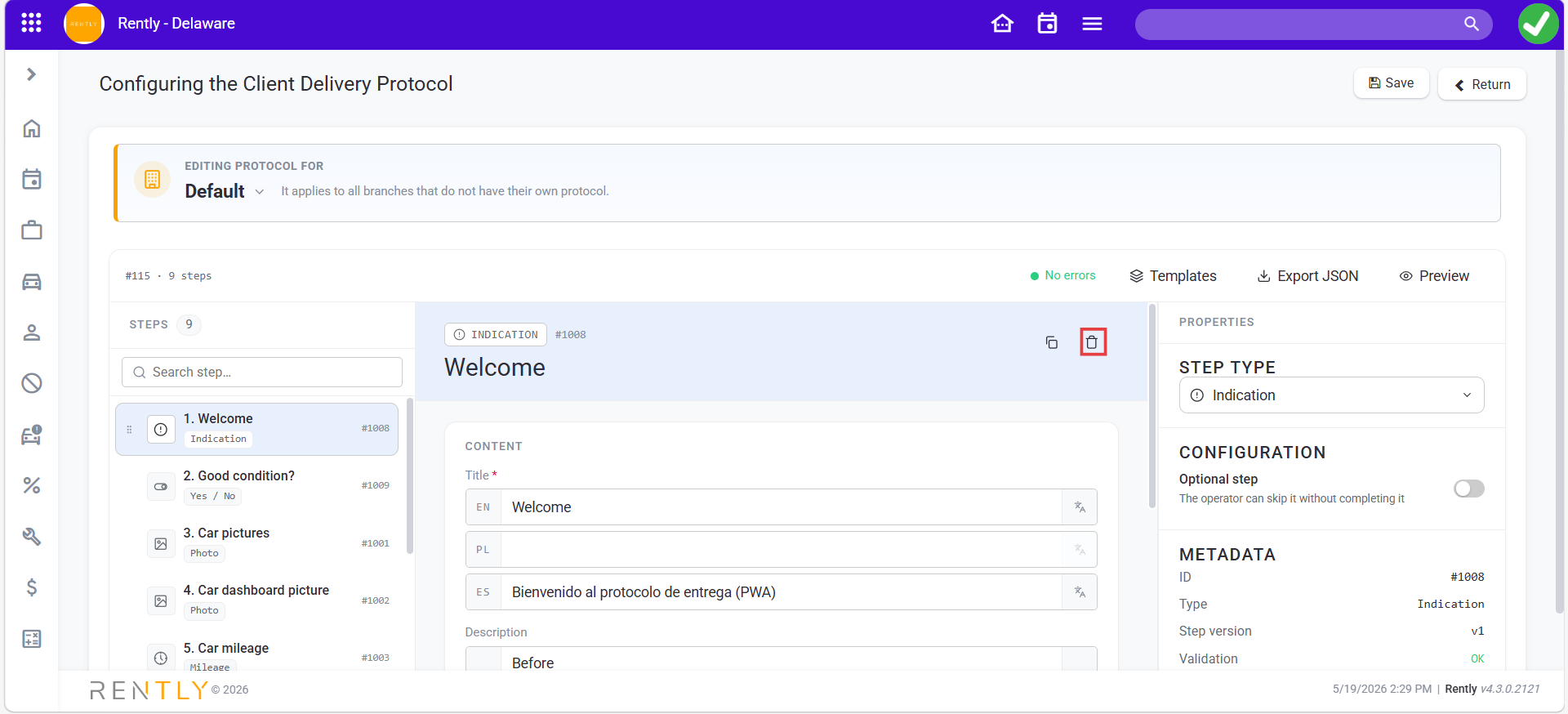
To delete a step, select it and click the delete icon.
To add a new step, click + Add Step.
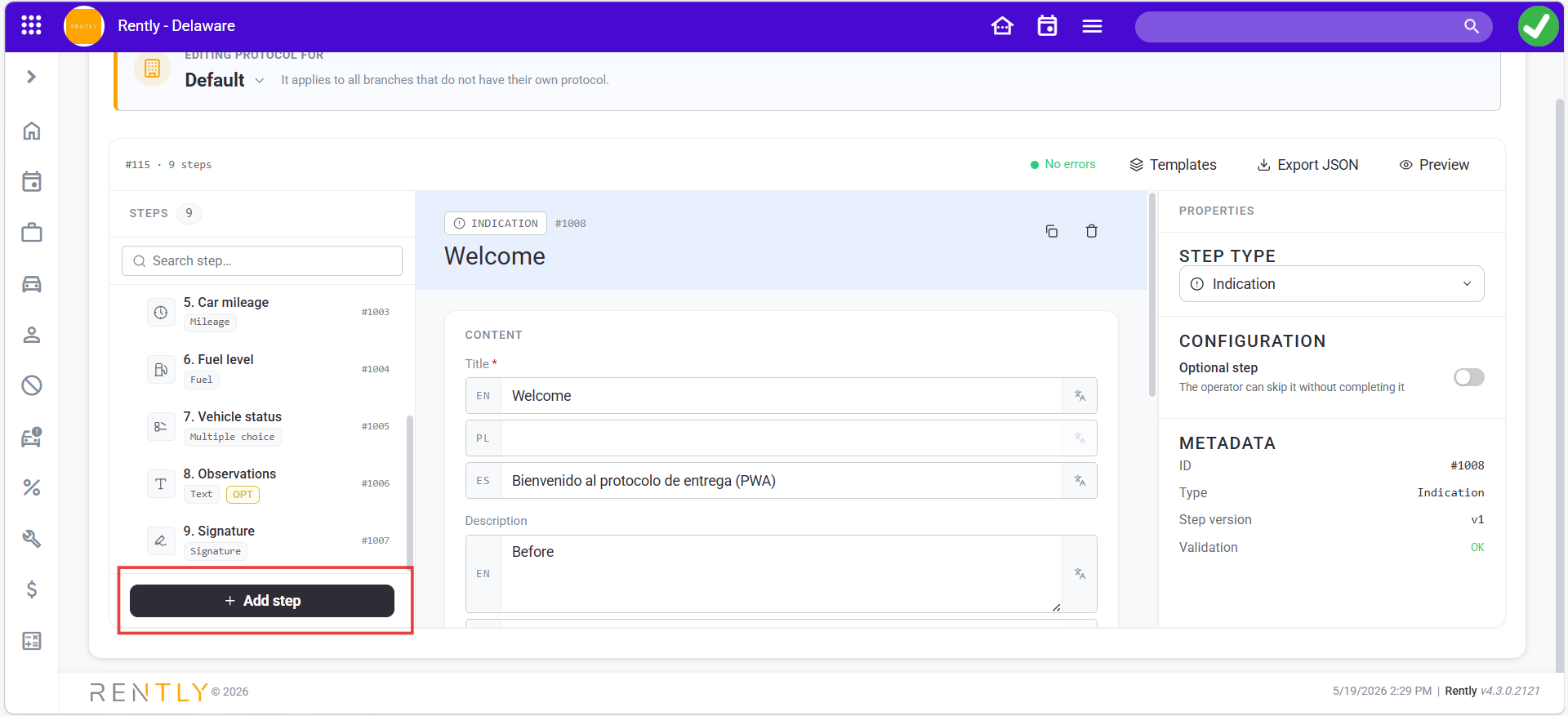
There, you can select different types of steps, including:
- An instruction
- An option input
- Text
- A boolean (yes/no)
- Photo
- Signature
- Photo review
- Incident
- Mileage
- Fuel
- Extras
After adding the step, you can edit its title and description in the corresponding fields.
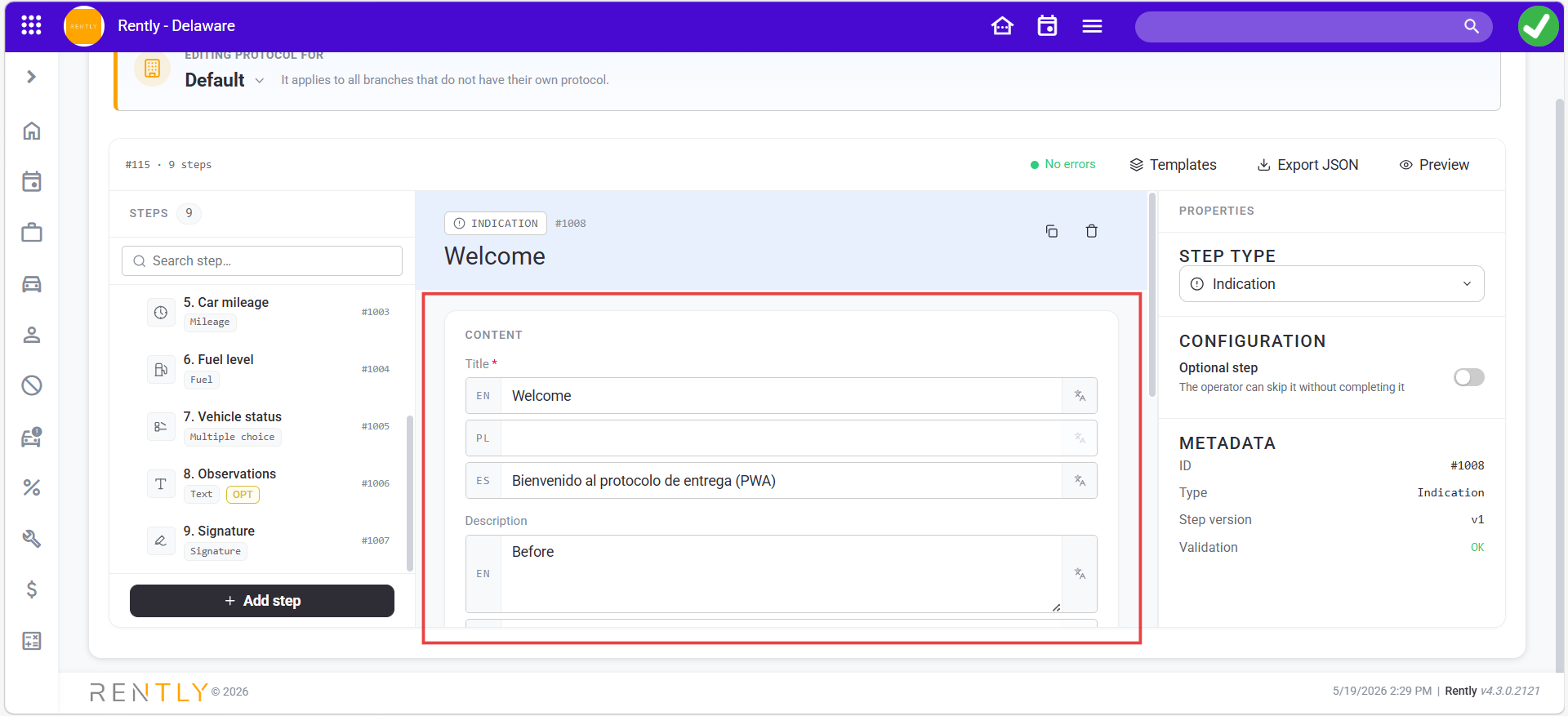
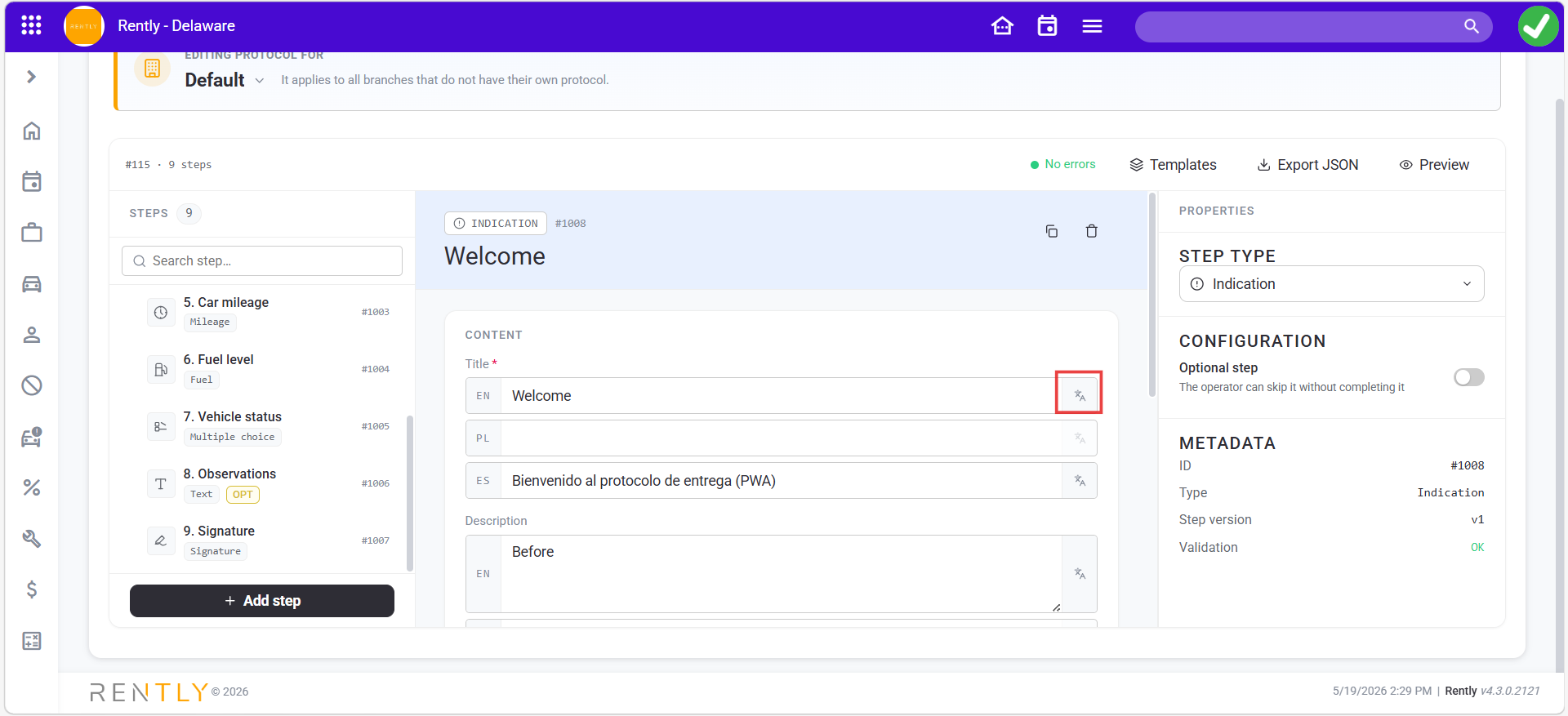
To translate it automatically, click the translation icon.
Finally, you can choose which branch this delivery protocol will apply to.
At the top of the screen, open the dropdown menu and select the branch.
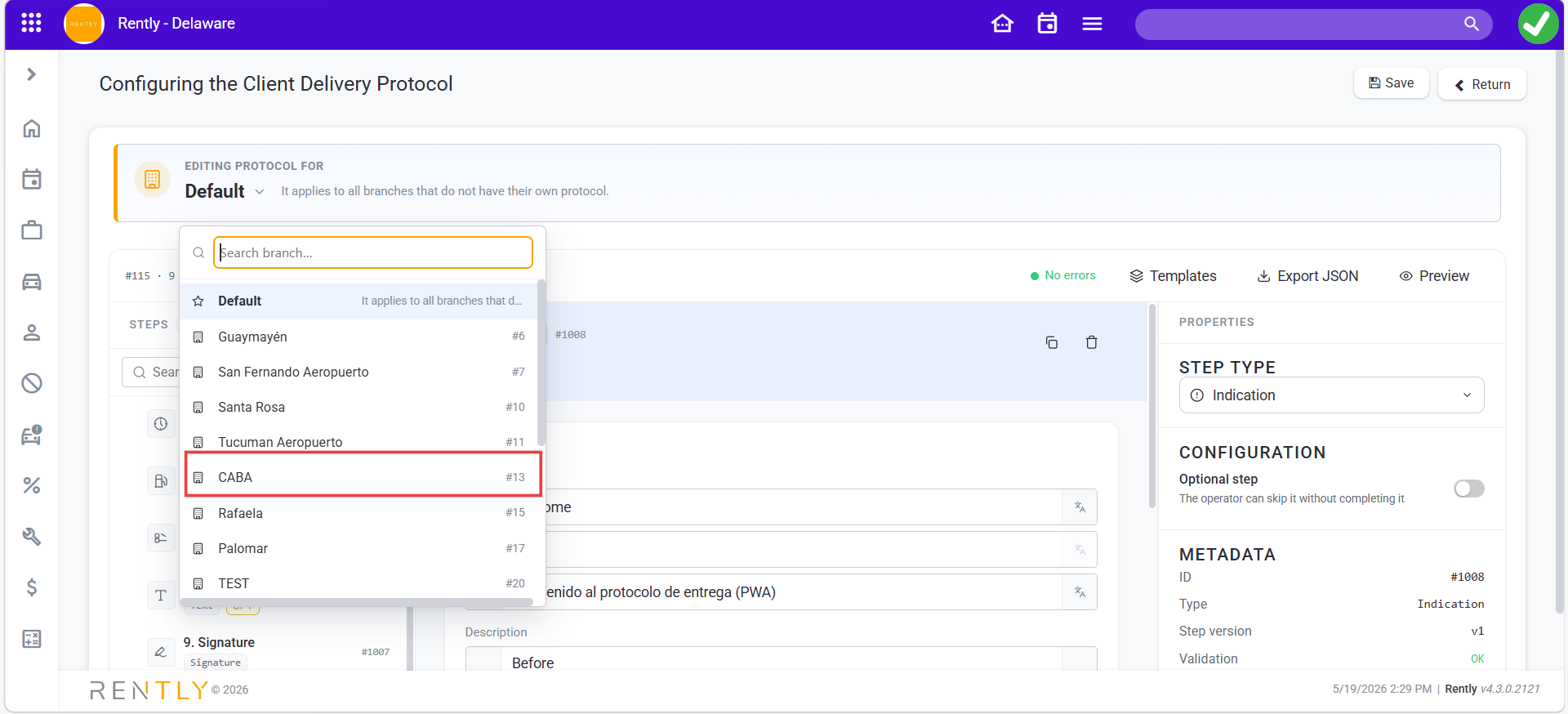
If you select Default, the protocol will apply to all branches.
Finally, click Save.